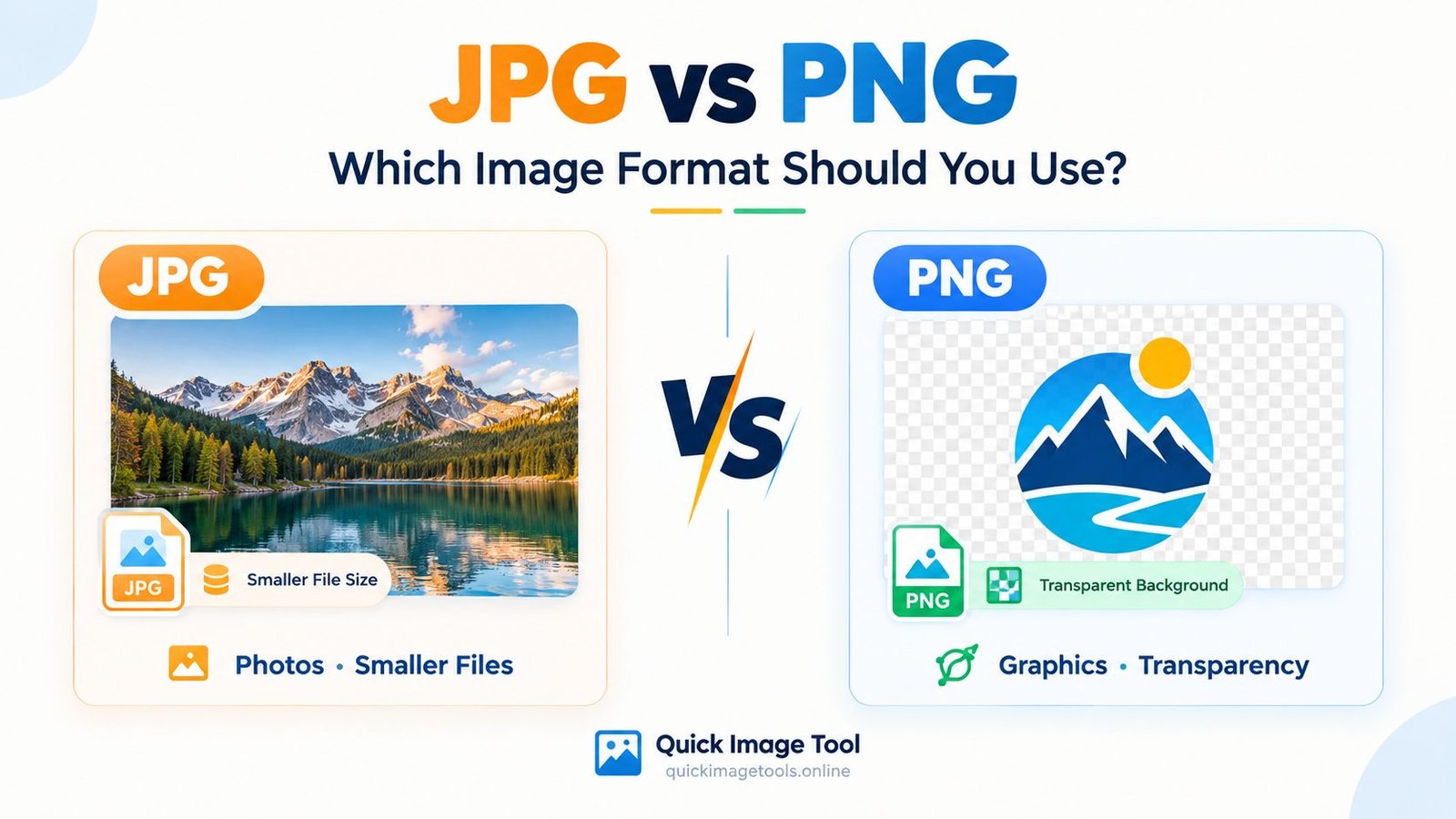
I used to choose JPG or PNG based on one simple rule: if the image looked good, I kept it.
That works until you start uploading images to a website.
Suddenly, file size matters. Transparency matters. Image quality matters. A format that works perfectly for one image can be a poor choice for another.
So, what is the difference between JPG and PNG?
The short answer is simple:
JPG is usually better for photographs and smaller file sizes. PNG is usually better when you need transparency, sharp graphics or clean text.
However, there is more to it than that. The right format depends on what you are doing with the image.
In this guide, I’ll explain JPG vs PNG in plain language and show you when each format makes sense.
JPG vs PNG: The Basic Difference
JPG and PNG are both popular image formats, but they handle images differently.
JPG uses lossy compression. That means the file can become much smaller by removing some image information.
PNG uses lossless compression. It keeps the image information intact while reducing the file size in a different way.
As a result, JPG often produces smaller files for photographs. PNG, meanwhile, works well for graphics that need crisp edges or transparency.
For everyday website images, that difference can make a noticeable impact.
What Is a JPG Image?
JPG, also written as JPEG, is one of the most common image formats on the web.
It works especially well for photographs.
Think about a travel photo, a product photograph or a picture taken with your phone. These images contain many colors and subtle changes between pixels.
JPG compression handles this type of content efficiently.
The main advantage is file size.
A large photograph can often be saved as a JPG and become much smaller than the original file. That makes JPG useful when you need images that load quickly and do not take up unnecessary storage.
The trade-off is quality.
When you save a JPG with heavy compression, some detail is removed. You may notice blurry edges, blocky areas or small compression artifacts.
For that reason, I normally avoid pushing JPG compression too far.
A slightly larger image that still looks clean is often more useful than a tiny image that looks damaged.
What Is a PNG Image?
PNG is another popular image format, but it is designed for different situations.
One of its biggest advantages is transparency.
For example, imagine you have a logo with no background. PNG can preserve that transparent area.
PNG also works well for screenshots, interface graphics, icons, diagrams and images containing sharp text.
The edges usually stay clean because PNG uses lossless compression.
There is a downside, though.
PNG files can become much larger than JPG files when you use them for photographs.
That is why saving every photo as PNG is usually unnecessary.
JPG vs PNG: File Size
File size is one of the biggest differences between JPG and PNG.
For photographs, JPG usually produces a smaller file.
For example, imagine a camera photo that is several megabytes in size. Saving it as a properly compressed JPG can reduce the file considerably while keeping it visually useful.
PNG can be much larger for the same type of photograph.
However, the result depends on the actual image. A simple graphic with only a few colors may compress very well as PNG.
So, don’t judge the formats using one image alone.
The type of image matters.
JPG vs PNG: Image Quality
Both formats can produce excellent results when used correctly.
The difference is how they handle compression.
JPG sacrifices some image information to reduce file size. Therefore, repeated saving and heavy compression can gradually affect the image.
PNG uses lossless compression. This makes it useful when preserving exact image information is important.
For a normal photograph on a website, a high-quality JPG can look excellent.
For a screenshot containing small text, a PNG may preserve the details more cleanly.
That distinction is more useful than simply asking which format has better quality.
JPG vs PNG: Transparency
This is where PNG has a major advantage.
PNG supports transparency.
That makes it useful for:
- Logos
- Icons
- Cutout graphics
- Transparent overlays
- Website elements
- Product graphics with transparent backgrounds
JPG does not support transparency in the same way.
If you save a transparent image as JPG, the transparent areas need a solid background.
For example, a logo that originally sits on a transparent background may appear with a white background after conversion to JPG.
This is something to check before converting a PNG.
When Should You Use JPG?
JPG is a good choice when your image is mainly photographic.
Common examples include:
- Blog photos
- Travel photos
- Product photography
- Lifestyle images
- Social media photographs
- Camera images
- Large colorful photographs
The smaller file size can also make JPG practical for website content.
If you have a large photograph that takes several megabytes, start by reducing its dimensions and then compressing it.
Our Image Compressor can help reduce the file size without requiring desktop software.
If the dimensions are also too large, you can use the Image Resizer before compression.
That combination is useful for large blog images.
When Should You Use PNG?
PNG makes more sense when image detail and transparency matter.
Good examples include:
- Logos
- Screenshots
- Simple illustrations
- UI graphics
- Diagrams
- Transparent images
- Graphics containing small text
For example, a screenshot of a software interface may look cleaner as PNG because small text and sharp lines can be important.
If you have a PNG that is too large for your website, you can first check whether it really needs to remain PNG.
If transparency is not important, converting it to JPG may reduce the file size.
Our PNG to JPG Converter lets you convert a PNG image to JPG in your browser.
JPG vs PNG: Which Is Better for Websites?
There is no single winner.
It depends on the image.
For photographs, JPG is often the practical choice because it can provide good visual quality at a smaller file size.
For transparent graphics, screenshots and sharp interface images, PNG can be more suitable.
Your website may use both formats.
For example, you might use JPG for a blog’s featured photograph and PNG for a transparent logo.
That is a much better approach than forcing every image into one format.
What About WebP?
There is another format worth knowing about: WebP.
WebP is designed for modern web use and can provide smaller files while maintaining good image quality.
It can also support transparency.
That makes it useful when website performance and image size are important.
If you want to experiment with WebP, you can use our WebP Converter to convert JPG or PNG images into WebP.
For a website owner, it is worth testing the converted file before replacing your original image.
Check the image quality first.
Should You Convert JPG to PNG?
Usually, not just to make the image “better.”
Converting a JPG to PNG does not magically restore image information that was already removed by JPG compression.
If your JPG already contains compression artifacts, converting it to PNG will not reverse them.
However, PNG can make sense if you need a format that supports transparency or lossless editing.
For a simple conversion, you can use our JPG to PNG Converter.
Choose the format based on the purpose of the image rather than the idea that one format is automatically higher quality.
Should You Convert PNG to JPG?
Sometimes, yes.
If you have a large PNG photograph and do not need transparency, JPG may reduce the file size significantly.
This can be useful for website images.
Before converting, though, check the image.
If it contains transparency, remember that JPG needs a solid background. Our PNG to JPG Converter handles transparent areas with a background during conversion.
For important graphics, keep your original PNG as a backup.
A Simple JPG vs PNG Decision
When I am unsure which format to use, I ask one question first:
What kind of image is this?
If it is a photograph, start with JPG.
If it needs transparency, consider PNG.
If it contains lots of small text or sharp interface elements, PNG may be a better fit.
If the image is already large and you need a smaller website file, consider compression or WebP.
This simple process prevents a lot of unnecessary conversions.
How to Reduce Image Size After Choosing the Format
Choosing JPG or PNG is only one part of image optimization.
Dimensions also matter.
A huge image does not become small just because you changed its format.
For example, if your website only displays an image at 1200 pixels wide, uploading a 5000-pixel version may waste storage and bandwidth.
Start by resizing the image when necessary.
You can use our Image Resizer to change its dimensions.
Then use the Image Compressor to reduce the file size.
For supported images, you can also test WebP with our WebP Converter.
This gives you a simple workflow:
Resize → Compress → Check quality → Upload
It only takes a little extra time, but it can make your images much easier to manage.
What If You Need to Rotate or Flip the Image?
Sometimes the format is not the problem.
The image simply needs a quick edit.
For example, you may have a photograph that was uploaded sideways.
You can use our Image Rotator to rotate it before uploading.
If the image needs to be mirrored, our Image Flipper can flip it horizontally or vertically.
These small tools can save you from opening a full image-editing program for a simple task.
What If You Need to Crop the Image?
Cropping is another common step before uploading an image.
Maybe the original photograph contains too much empty space. Or perhaps you need a specific composition for a blog image.
In that situation, use the Image Cropper to remove unwanted areas.
After cropping, check the dimensions and file size again.
A smaller image is often easier to use on a website.
JPG vs PNG: Quick Comparison
Here is the simple version:
| Feature | JPG | PNG |
|---|---|---|
| Best for | Photos | Graphics and transparency |
| Compression | Lossy | Lossless |
| Transparency | No | Yes |
| Photograph file size | Usually smaller | Usually larger |
| Sharp text | Good | Very good |
| Logos | Sometimes | Often better |
| Screenshots | Good | Often better |
| Website photos | Often useful | Can be unnecessarily large |
The table is a guide, not a strict rule.
Your actual image should decide the final format.
Common JPG and PNG Mistakes
A few mistakes show up repeatedly when working with images.
Saving every image as PNG
PNG is excellent, but that does not mean every photograph needs it.
Large photographic PNG files can waste storage.
Compressing JPG too much
A tiny file is not always a good file.
If the image looks blurry or blocky, increase the quality.
Converting formats without a reason
Changing JPG to PNG will not restore lost JPG detail.
Likewise, converting every PNG to JPG can remove transparency.
Uploading oversized images
A 5000-pixel image may be unnecessary if your website displays it much smaller.
Resize first when appropriate.
Deleting the original
Keep an original copy of important images.
That gives you a clean source if you need to edit or convert the image again later.
My Simple Workflow for Website Images
When preparing an image for a website, I normally keep the process simple.
First, decide what the image actually needs.
Next, choose JPG or PNG based on the image type.
Then check the dimensions.
If the image is unnecessarily large, resize it.
After that, compress the file and inspect the result.
Finally, upload the version that gives you a good balance between appearance and file size.
If you are working with several image types, keep the original files in a separate folder. That small habit can save you a lot of frustration later.
Frequently Asked Questions
Is JPG better than PNG?
Neither format is always better. JPG is often more practical for photographs, while PNG is useful for transparency, screenshots and graphics with sharp details.
Is PNG higher quality than JPG?
PNG uses lossless compression, but that does not mean it is automatically better for every image. A high-quality JPG can look excellent while using much less storage.
Should I use JPG or PNG for a website?
For photographs, JPG is often a good starting point. For transparent graphics, logos and many screenshots, PNG can be more appropriate.
Does converting JPG to PNG improve quality?
No. Converting a JPG to PNG cannot restore image information that JPG compression already removed.
Does PNG support transparent backgrounds?
Yes. PNG can preserve transparent areas, which makes it useful for logos, icons and other graphics.
Is WebP better for website images?
WebP can be a useful option for modern websites because it can provide efficient image compression and supports transparency. Test the output quality before replacing your original images.
How can I make a JPG or PNG smaller?
Start by checking the image dimensions. Then compress the image using an appropriate quality level. You can use our Image Compressor for a quick browser-based workflow.
Final Thoughts
JPG and PNG are both useful.
The trick is knowing when to use each one.
Use JPG when you mainly need a smaller photographic image. Choose PNG when transparency, sharp graphics or lossless compression matters.
Most importantly, do not optimize images blindly.
Look at the image, check its purpose, and then choose the format.
For website owners, a simple workflow of choosing the right format, resizing when necessary and compressing carefully can make image management much easier.
If you want to work with your images now, you can start with our free online image tools and choose the tool that matches your task.
3 thoughts on “JPG vs PNG: Which Image Format Should You Use?”